SQlPractice1

Friday, 20 September 2013

Transactions in SSIS with example:

Today we will discuss about transactions in SSIS (sql server integration services)

Transactions in SSIS allows you to commit the group of data flow tasks (or) allows you to roll back the

group of dataflow tasks as single logical unit of work

Transactions supported by every executable (i.e. package level, task level, container level)

For this 2 properties have to be set for executable

1. Transaction option

2. Isolation level

Transaction option is of 3 types

1. Not supported: executable will not support transactions

2. Supported: executable will join the transaction if transaction exists.(default)

3. Required: executable join the transaction if exists else it creates new transaction

Process:

If any tasks are executed, then tasks are executed under transaction if transaction option for executable is
set to supported.

Suppose sequence container having 3 sql execute tasks and it is sequence container is having transaction

option =required

Isolation level =serilizable(default).

Then it creates new transaction when executed the sequence container.

All the tasks in sequence container is having transaction option set to supported means these asks run

under transaction created by sequence container.

If the tasks having transaction option set to Required, it will join the existing transaction , if no
transaction is there, it will create new transaction and executes

Example:


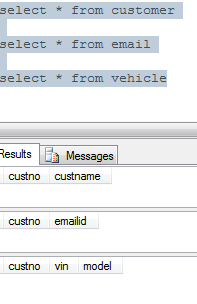
Create 3 tables with names as

1.Customer

2.Email

3.Vehicle

Syntaxes:

create table customer(custno int,custname varchar(10))

create table email(custno int,emailid varchar(20))

create table vehicle(custno int,vin char(5) not null,model char(3))

Where VIN-Vehicle identification number

Open Business intelligence development studio and click on file->new->project->integration services

project

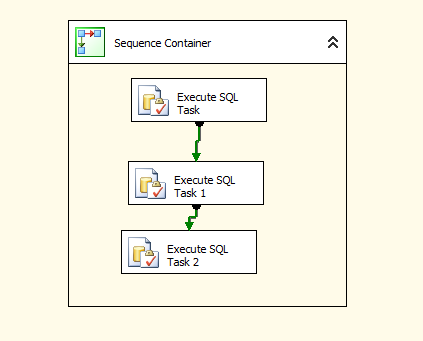
Place sequence container and drag 3 execute sql tasks like below


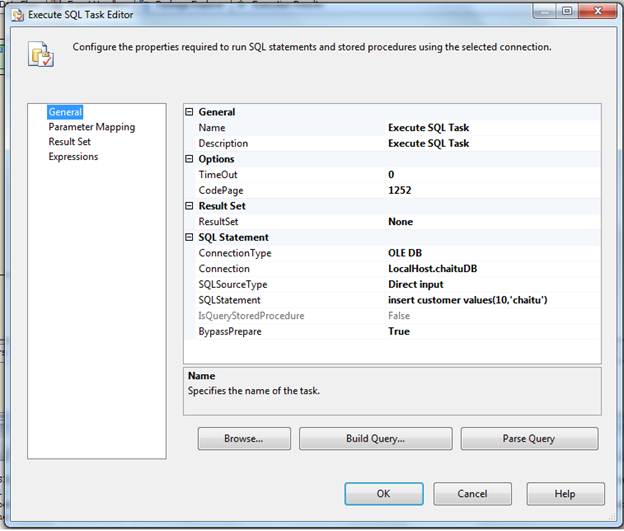
Double click on first execute sql task and set the properties

In general page, connection type =OLEDB

Connection: select new connection, a window occurs, specify the data source information give server

name and database information and test the connection


Click OK and we got below screen


General page,

Sql source type=Direct input

Sql statement=insert customer values(10,’chaitu’)

This is looks like below.


Same can be done for other execute sql tasks with same connection but different sql statement

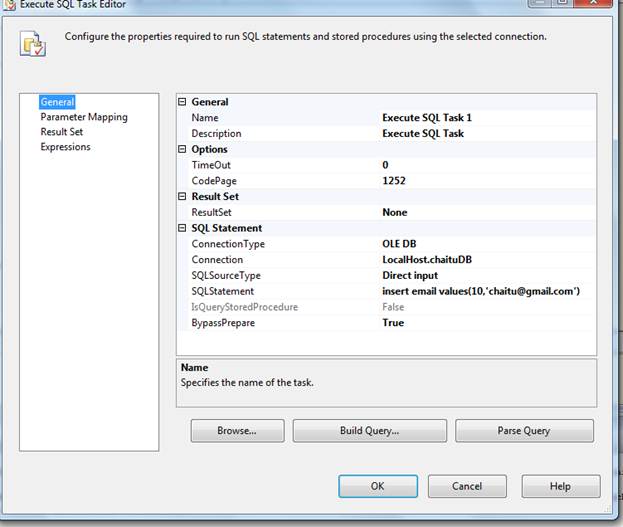
Set Execute sql task 1 Properties


Set Execute SQL task 2 properties
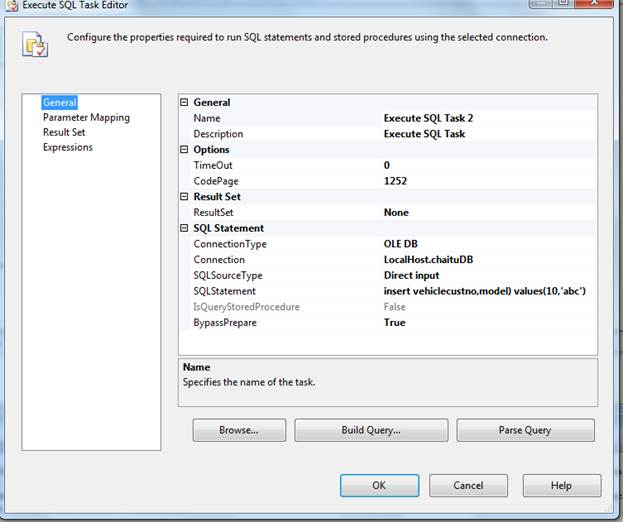


insert vehiclecustno,model) values(10,’abc’)

We have passed values to the insert statement for 3rd task but the table is having not null 

column. We are not passing information to that column. So this task must fail.


Transaction in SSIS makes use of the Distributed Transaction Coordinator (MSDTC) service which must

be running in services. MSc. MSDTC also allows you to perform distributed transactions e.g. updating a

any RDBMS database. If you execute an SSIS package that utilizes the built-in transaction support and

MSDTC is not running, you will get an error message like the following:

Error: 0xC001401A at Transaction: The SSIS Runtime has failed to start the distributed transaction due

to error 0x8004D01B "The Transaction Manager is not available.". The DTC transaction failed to start.

This could occur because the MSDTC Service is not running.

Execute the package by pressing f5

We got below error like this
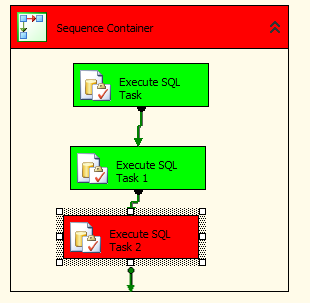


First two execute sql tasks are success. 3rd task is failed. So transaction is roll backed. Because these 3

tasks are running under single transaction

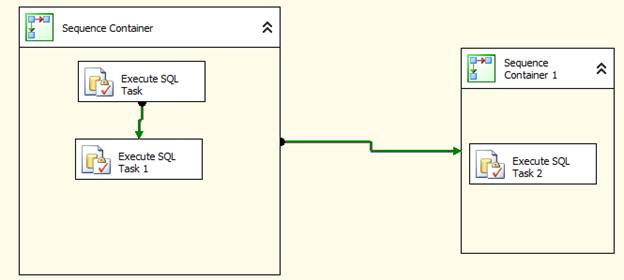
To implement package scope transactions, place another sequence container move execute sql task 2 to

that sequence container. Go to properties window of package by clicking f4

Transaction property: required

Isolation: serilizable(default)

Sequence containers properties are:

Transaction property: Supportes

Isolation: serilizable(default)

It will be looks like below

Execute the package by clicking on F5

It will be failed as 3rd task is failed.
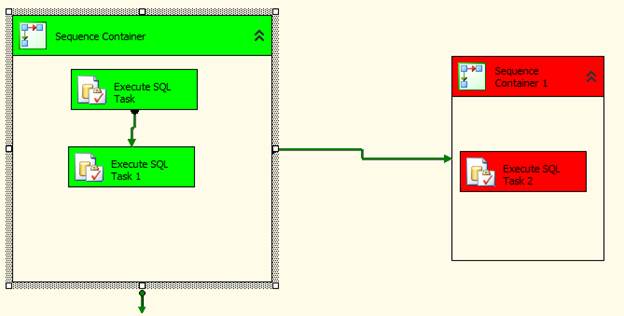


So first and second task inserts data, that is roll backed.


This is all about transactions in SSIS.

Thanks for viewing.

Thursday, 19 September 2013

Checkpoints in SSIS :

This post will help you who are learning bi.The usage of Checkpoints is when you create a big package
it will take execution time nearly 1hr time suddenly some error throws.then what next find the error where it is occurred and Fix it.this normal behaviour in this way it starts from starting of the package.
this Probelm overcome to introduce Checkpoints in ssis.the aim of this is while execution time Error occurred at certain task failed then Fix the Error and start execution from where error is occurred.

checkpoints means to start from last failure point of the Package.

see the below example

1.we have create a table in the database (Empty).

create table CheckPoints(ID INT  primary key ,Name Varchar(10))

2.I have taken three Execute sql tasks For insert the data into the table.

3.right click on controlflow ->goto->Properties.


4.Configure the above properties.
5.and  press F4 on every task .and true the property FailPackageonFailure.

6.if we run tha package fail bacause every  Sqltask have below query.
 insert into CheckPoints values(1,'x') 
 so because Primary key violation error.
 when you change the query in 2nd Sqltask 
 insert into Checkpoints values(2,'y') 
 then start from 2nd Sqltask .like it will Executed.


Friday, 13 September 2013

Load Multiple Excel Files into Database


Open BIDS

Create new integration Service Project, create a new
package say “ImportMultipleExcelFiles.dtsx”

1. Create a Folder ExcelFiles (C:\ExcelFiles)and then create multiple
Excel files in folder C:\ExcelFiles but make sure all Excel files have identical schema (format) 

Assuming all Excel files above contain data in worksheet “Sheet1
with below schema

City
Value
AY
2000
BY
3000
CY
4000

You can have your own sheet name but keep a note, worksheet
name has to be uniform across all Excel files that contains data to be uploaded.

2. Right Click on Control Flow
Window, Select Variables
Add a variable “FileName
at Package Level having data type string


3. Go to Control Flow add a “For Each Loop Container” Component.

Right-click on the Foreach Loop container and select Edit.
Then, Click on Collection “Collection” tab. Assign folder path and file type as
shown below


Then go to “Variable
Mappings
“ tab and map variable created above like
below


6. Drag a “Data Flow Task “inside
“Foreach Loop Conatainer”, double clickson Data flow task
Drag one “Excel Source” task ,
double click on this to get “Excel Source Editor “ Window
Now choose new and new window will
open , now browse to your first excel file that isC:\ExcelFiles\First.xls
Under Name of the Excel Sheet” on “Excel
Source Editor “, choose Sheet1$

7. Now drag “OLE DB Destination”
task  , connect “Excel Source” to “OLE DB Destination”
Point this conenction to your database and create new table or use an existing table
Map both like below

8. Go to the Properties
of ”Excel Connection Manager”
Expand “Expressions”
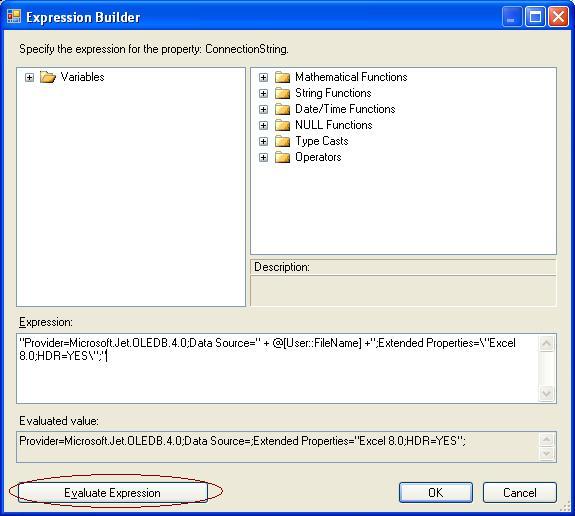
Choose “Connection String” property and assign value of Expression like below
"Provider=Microsoft.Jet.OLEDB.4.0;Data Source=" + @[User::xls] +";Extended Properties=\"Excel 8.0;HDR=YES\";"


9. Click on button “Evaluate Expression” at the bottom left of above window to check for any errors
10.Set property DelayValidation=TRUE on the Data Flow task
10.Execute your Package

Monday, 2 September 2013


SSIS 2012 Parameters Model:

 My first approach to understand to SSIS Configuration Model using Parameters was to Google Microsoft Link about it which I found http://msdn.microsoft.com/en-us/library/hh213214.aspx but I must admit even with my experience I didn't understand a lot and as I am not a fan of "difficult reading" I decided not to spend to much time on reading it and do some more research, practice and write something on my own. 
Parameters is quite a comprehensive subject so I decided to break it down into small chunks that are easier to digest so in this article I will give you overview of the new model from SSIS 2012 Development perspective (I will not discuss deployment and execution in details but check our SSIS Tutorial for more articles)
SSIS Configuration objective is to make sure that the package can work on different environments and in SSIS 2012 this is achieved using new featured called parameters. Is this method new? Rather not, in previous version of SSIS (2005 to 2008 R2) we had variables in a package and 'package configuration' that allowed us to change variables from "outside".
The new method is nothing than break down of variables into:
  • Parameters which are:
    • Project Parameters 
    • Package Parameters
  • Variables (that stays the same but without functionality that was replaced by Parameters)
To give you a better picture of the new model look the picture below.


My first approach to understand to SSIS Configuration Model using Parameters was to Google Microsoft Link about it which I found http://msdn.microsoft.com/en-us/library/hh213214.aspx but I must admit even with my experience I didn't understand a lot and as I am not a fan of "difficult reading" I decided not to spend to much time on reading it and do some more research, practice and write something on my own.
Parameters is quite a comprehensive subject so I decided to break it down into small chunks that are easier to digest so in this article I will give you overview of the new model from SSIS 2012 Development perspective (I will not discuss deployment and execution in details but check our SSIS Tutorial for more articles)
SSIS Configuration objective is to make sure that the package can work on different environments and in SSIS 2012 this is achieved using new featured called parameters. Is this method new? Rather not, in previous version of SSIS (2005 to 2008 R2) we had variables in a package and 'package configuration' that allowed us to change variables from "outside".
The new method is nothing than break down of variables into:
  • Parameters which are:
    • Project Parameters 
    • Package Parameters
  • Variables (that stays the same but without functionality that was replaced by Parameters)
To give you a better picture of the new model look the picture below.


The major difference between SSIS 2005 up to 2008 R2 is that the model changes from 'package configuration' to 'project configuration' and that means that we now create a project and add packages and parameters to it. Package on it's own can no longer be used (unless you use 'legacy' option). Package MUST be part of a project which undoubtedly will spark a few discussion (pros and cons) but I presume best practice will soon appear.
Coming back to the subject what we now have are Parameters and make note there are two types of parameters which are:
Project Parameters - They live outside of the package on project level and you parameterize your packages using project parameters (which you can also think like Global variables or Global Parameters). Project Parameters will most likely be used for things that change between environment but don't change on the same environment (during execution) which means that majority of it will be connection strings.
Below is a screenshot of SSIS 2012 in SSDT that shows Project Parameters


Package Parameters - We can also define Package Parameters and those live inside the package. Package Parameters work in a similar way as variable and the main difference is that when we execute a package for instance from another package we pass values to package parameters not directly to variables which in SSIS 2012 basically simplifies it in my opinion (as we don't have variables that do everything like in SSIS 2005 to 2008 R2)
Below is a screenshot of SSIS 2012 in SSDT that shows Package Parameters


Note to myself.... write article about Package Parameters (In depth) and provide link here
Variables - They work inside the package and often change during execution of the package (loops etc) but they no longer have responsibility of managing more static values which now are managed by package parameters and project parameters.

Important: There is one very important aspect I didn't mention and that is how to change parameter value depending on environment which is the key element of SSIS Configuration. The reason why I didn't mention it is that you cannot do that during development, which is a good thing I believe and you can do that during deployment (or take development values which I don't recommend) or after deployment and I will dedicate separate articles on this subject. What you can do during development is specify parameter design values and you can have collection of values for different purpose which will make development life easier. These values can be deploy as 'final' but I do not recommend it as it miss the point of having parameters.... I will write more about it soon but I thought I will give you a quick answer here.
So that is high level view about parameters in SSIS 2012. It is not intended to give you in-depth knowledge or knowledge to build projects using  new model but hopefully it will give you better understanding of the new model and we will write new articles soon that will go into more details.
Take care


difference between lookup and merge join in ssis: